

Markers are the heart of most maps. Add as many as you like, each with its own icon and popup.
Add a marker
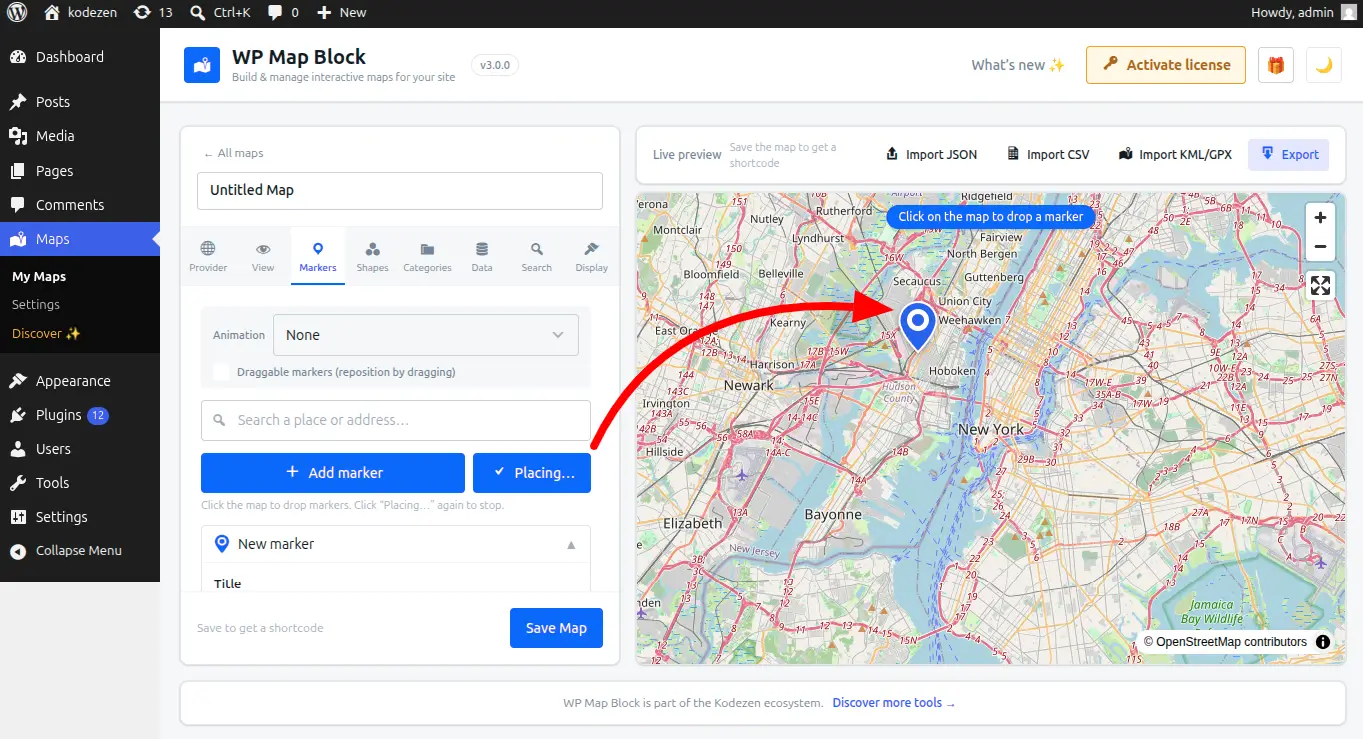
Open the Markers panel, then either:
- Search — click Add marker and type an address; autocomplete finds the coordinates for you.
- Click to place — enable “pick on map” and click the spot (adding markers by clicking is optional, so you won’t drop pins by accident).
- Type coordinates — paste a latitude and longitude directly.
Move & edit
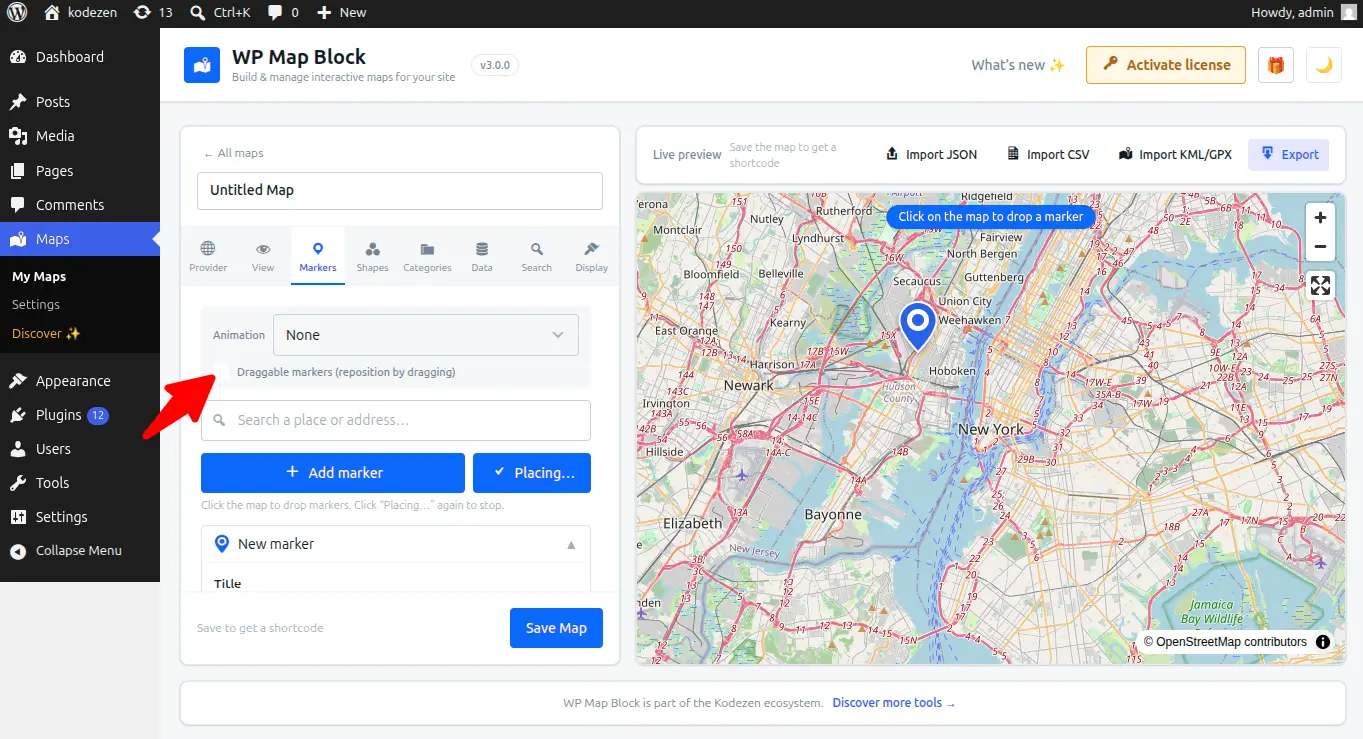
Drag a marker to reposition it, or edit its title, description, image and link in the popup fields. Delete from the marker list.
Custom icons & categories
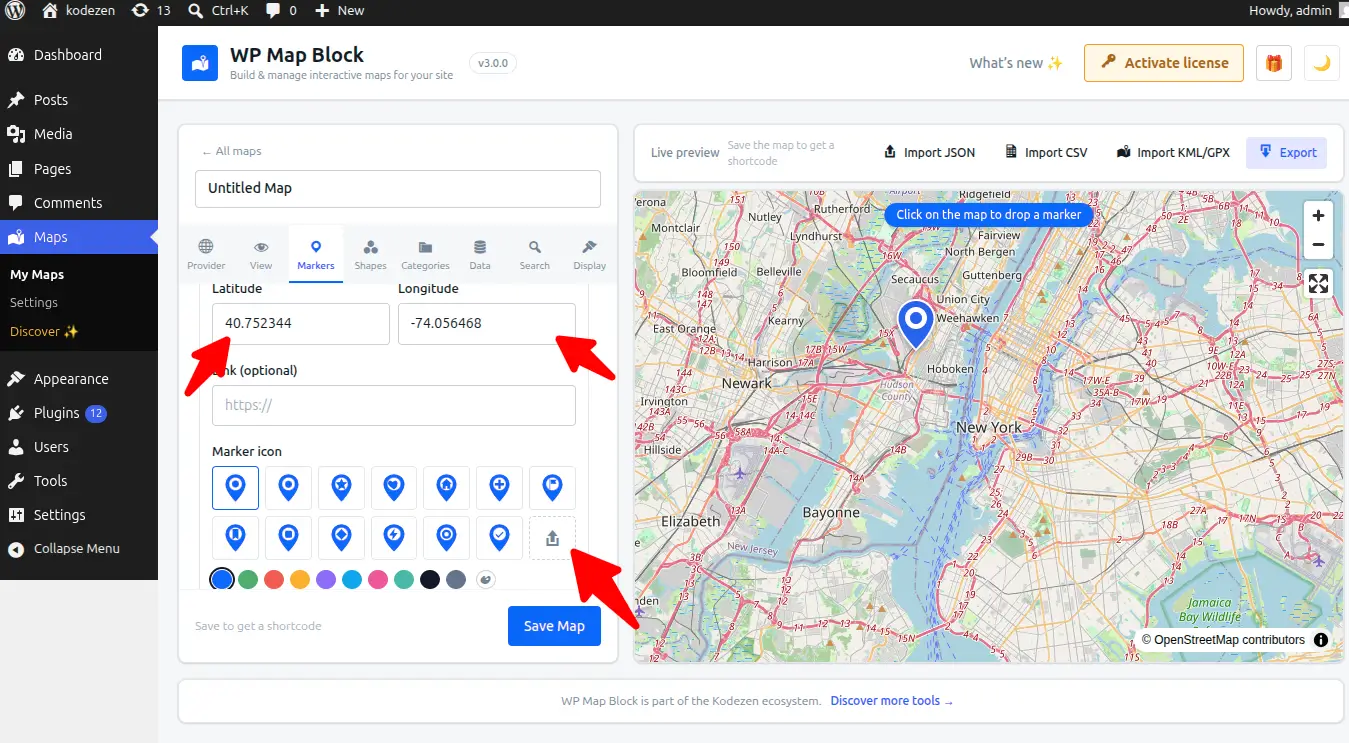
Give a marker a custom icon from the icon library, and group markers with categories for front-end filtering.
Lots of markers? Turn on clustering to keep the map tidy.